Turn SketchUp Models into Photorealistic Renders with AI
Export a view from SketchUp, upload it to ArkViz AI, and get a client-ready architectural render in 15–45 seconds. No plugin to install, no materials or lights to set up, no prompts to write — and your design keeps its shape.
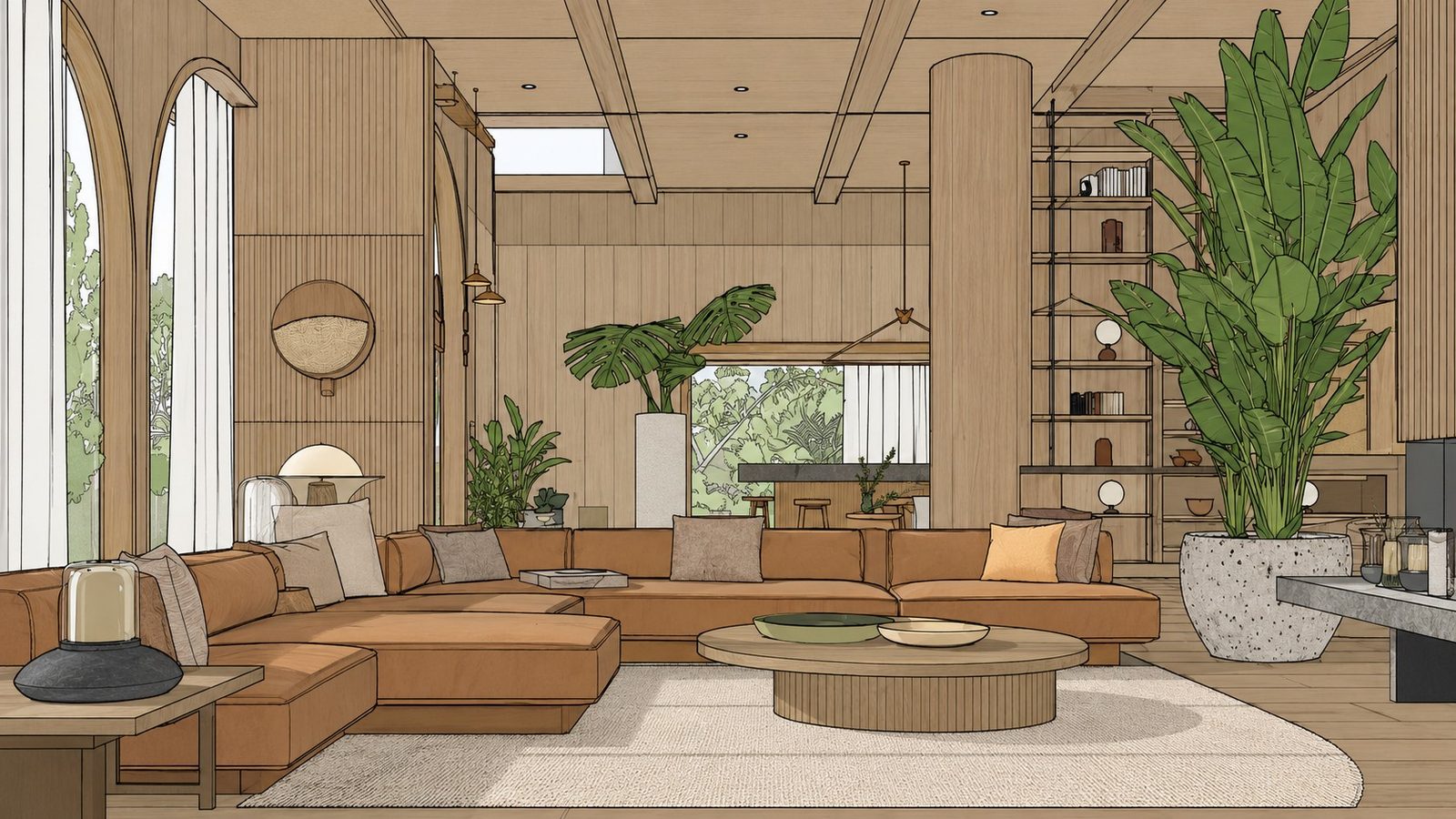
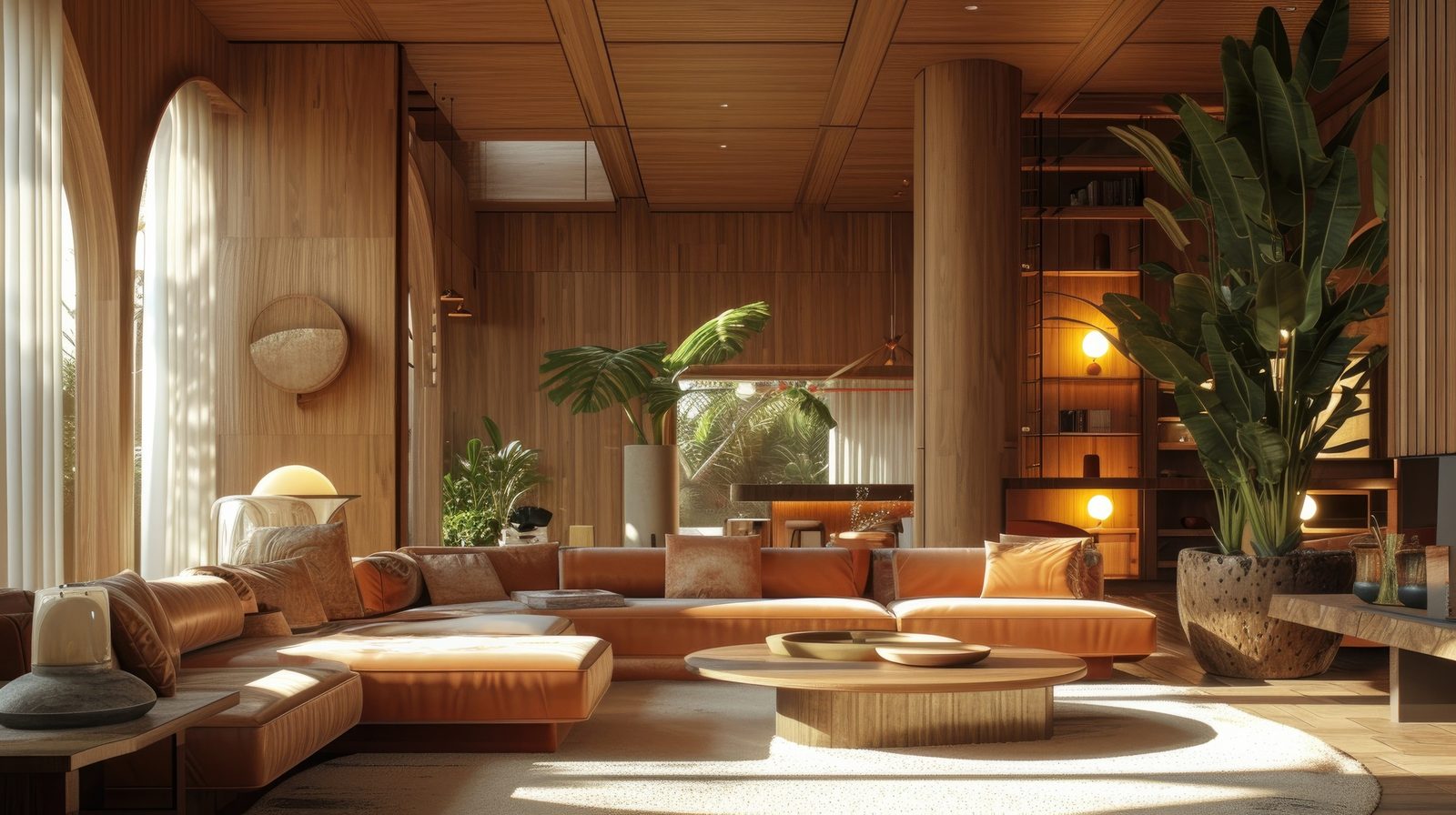
Drag the handle to compare the SketchUp export with the ArkViz AI render.
Quick answer: To turn a SketchUp model into a photorealistic render with ArkViz AI, export your view as a JPG or PNG (File → Export → 2D Graphic), open app.arkviz.ai, choose Render Exterior or Render Interior, upload the image, pick a style and lighting, and click Generate. The render is ready in about 15–45 seconds, with the building's shape and proportions kept as designed.
Presentation-ready visuals without a rendering pipeline
Traditional rendering from SketchUp usually means installing a render engine, assigning materials, placing lights, tuning settings and waiting for the render to finish. That's worth it for final hero images, but slow for early design reviews and quick client updates.
ArkViz AI works from the image of your view instead. It reads the geometry already in your SketchUp scene and adds realistic materials, lighting, sky and surroundings around it.
No plugin
Works in your browser with an exported image. Nothing to install inside SketchUp, and it works with any version that can export a view.
No prompts
Choose style, lighting and mode from simple presets. You don't need to write or learn AI prompts.
Your design, kept
The building's shape, proportions and layout stay as you modelled them. Only materials, light and atmosphere are rendered.
How to render a SketchUp model with ArkViz AI
Set up and export your view in SketchUp
Frame the view you want to present, then export it with
File → Export → 2D Graphicas a JPG or PNG. A simple screenshot of the view also works.Open ArkViz AI and choose a mode
Go to app.arkviz.ai and pick the mode that matches your view — Render Exterior for building views, Render Interior for rooms (see the table below).
Upload and pick style & lighting
Upload your export (JPG or PNG, up to 50 MB), then choose a style such as Modern, Luxury, Scandinavian or Industrial, and lighting such as Daytime, Golden Hour or Night.
Generate, refine and download
Click Generate. In 15–45 seconds you get a photorealistic render. Download it, upscale it (up to 8K, depending on plan), or iterate — change the facade or lighting while keeping the same design.
Which ArkViz mode to use for your SketchUp view
Match the mode to what your exported view shows.
| Your SketchUp view shows | Choose this mode | You get |
|---|---|---|
| Building from outside | Render Exterior | Photorealistic exterior with sky, season, lighting and materials |
| A room or interior space | Render Interior | Styled interior with furniture, lighting and colour palette |
| Top-down plan view | Floor Plan 3D | Photorealistic top-down 3D render of the layout (floor plan guide) |
| Site layout from above | Site Plan Render | Aerial, isometric neighbourhood or ground-level views |
| Garden, plot or outdoor terrain | Landscape Render | Planting, hardscape, water features and terrain |
| A single furniture piece or fixture | Object Render | Detailed product-style render on a clean background or in context |
Tips for exporting SketchUp views for AI rendering
The AI can only work with what it sees in the image, so a clean, clear export gives the most faithful result.
- Export at a good size. Aim for around 1920 pixels wide or more so edges and details are clear.
- Hide what isn't part of the design. Turn off axes, guides, section planes and dimension tags before exporting.
- Use straight verticals for exteriors.
Camera → Two-Point Perspectivekeeps walls vertical and looks more like architectural photography. - Give the AI a hint with basic colours. Even simple materials (glass vs. wall vs. roof) help it understand what each surface is.
- Keep one clear subject. A focused view of the building or room renders better than a cluttered scene with many overlapping objects.
- Pick the angle you'll present. The render follows your camera, so set up the exact view your client should see.
What ArkViz AI does — and doesn't — do
It works from images, not model files. ArkViz AI renders the view you export. It does not open .skp files or change your SketchUp model, so to render another angle, export another view.
It's ideal for speed and iteration. Design reviews, early client presentations, mood and material options, and quick day-to-night versions of the same view.
Renders are yours. You can use them commercially — client presentations, marketing and publications.