AI Exterior Rendering & Day-to-Night Renders
Upload a SketchUp or CAD view, a sketch, a GLB model or a photo of a building to ArkViz AI and get a photorealistic exterior render in 15–45 seconds. Turn the same view into golden hour, blue hour or night in one click — no prompts, no relighting in 3ds Max or V-Ray, and your design stays as designed.
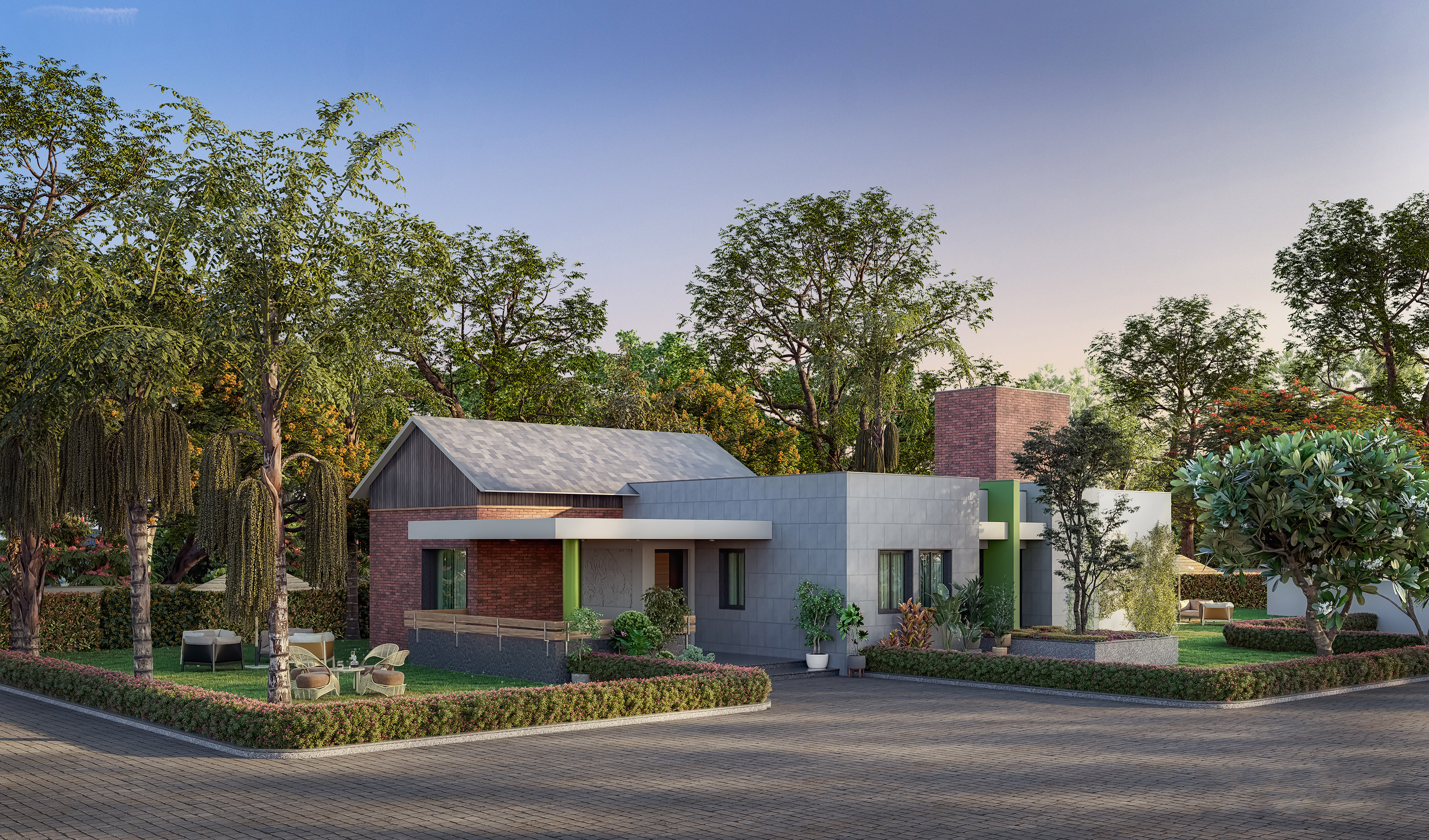
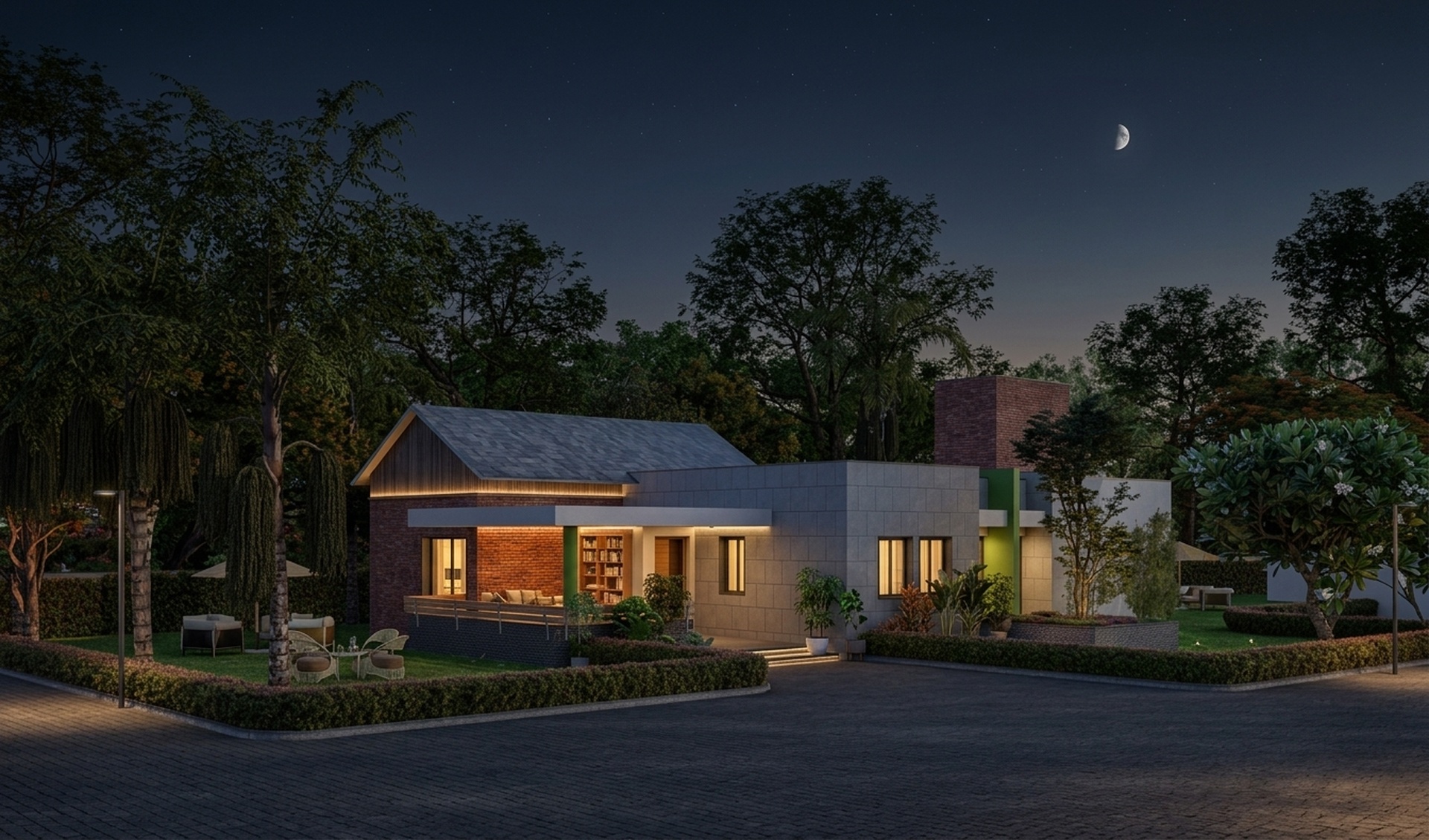
Drag the handle to compare the daytime view with the ArkViz AI night render.
Quick answer: To create an AI exterior render with ArkViz AI, open app.arkviz.ai, choose Render Exterior, upload a SketchUp or CAD screenshot, sketch, GLB model or photo, pick a Style (Photoreal for realism), a Lighting & Time preset (such as Golden hour, Blue hour or Night) and optionally sky, season and environment, then click Render. For a day-to-night render, upload your daytime view and choose Night or Blue hour — the building stays the same, only the light changes.
Client-ready exteriors without the rendering setup
A traditional exterior render means setting up materials, HDRI sky, sun position, landscape and entourage — and doing it again for every lighting option. A night version often takes as long as the first render.
ArkViz AI starts from the view you already have and adds realistic materials, sky, landscape, people and context in seconds. Changing from day to night, or summer to monsoon, is a preset — not a new project.
Same building, every mood
Morning, golden hour, sunset, blue hour and night from one view.
Local context
Indian, Asian, European, American, Japanese, Arabic or African surroundings, plus climate-aware seasons for your project location.
Your design, kept
Form, openings and proportions follow your input. The AI adds realism, not a new design.
How to create an AI exterior render with ArkViz AI
Prepare your view
Take a screenshot of your SketchUp, Revit or CAD view, scan a sketch, photograph the building, or export a GLB model. Hide toolbars and guides first.
Choose Render Exterior and upload
Go to app.arkviz.ai, select Render Exterior and upload your file (JPG, PNG, WebP, PDF or GLB).
Set style, lighting and surroundings
Optionally type the project location for climate accuracy. Pick Style & Render, Lighting & Time (or a precise time), sky type, season, nature, environment, context and camera view.
Render, then iterate
Click Render. In 15–45 seconds you get a photorealistic exterior. Switch to Night or Blue hour for a day-to-night version, upscale up to 8K (depending on plan), or change one material with Inpaint & Draw.
One design, every time of day
Iterate on the same render instead of starting again. Each version stays locked to your original geometry — only what you ask to change, changes.


For a convincing night render: choose Lighting Night or Evening view, set Sky Type to Night + Moon or Night No Moon, and add Effects such as Street lights, Car trails or Wet roads. Interior Light follows the selected lighting preset automatically, so windows glow at night.
Exterior presets in ArkViz AI
Every choice is a click. ArkViz AI builds the prompt for you from the presets you select.
| Setting | Options |
|---|---|
| Location (optional) | Type your project location for climate-accurate seasons and light |
| Style & render | Photoreal, Watercolor, Illustrate, Sketch, Blueprint, CAD, Clean |
| Lighting & time | Golden hour, Night, Morning, Blue hour, Sunset, Day convert, Brighter, Evening view — plus Precise Time (hour and minute) |
| Sky type | Auto, Clear, Overcast, Cloudy, Hazy, Night + Moon, Night No Moon |
| Ground | Auto, Dry, Damp, Wet, Grassy |
| Road material | Auto, Cobblestone, Tar Road, Concrete, Brick |
| Nature | Add trees, Foliage, Add lawn, Add soil, Flowers, Birds |
| Atmosphere & season | Summer, Spring, Autumn, Winter, Rain, Mist, Haze |
| Effects | God rays, Fog, City BG, Abandoned, Car trails, Street lights, Wet roads, Under construction |
| Environment | Indian, Asian, European, American, Japanese, Arabic, African |
| Context | Auto, Urban, Suburban, Nature, Abandoned |
| People & objects | Add people, Blur people, Add vehicles, Blur vehicles, Activity |
| View & camera | Side view, Front view, Aerial, Axo, Closeup, Hero shot, Scale model |
Exterior render made with ArkViz AI


Who AI exterior rendering is for
- Architects — show clients a realistic facade at concept stage, in day and night versions.
- Real estate developers and builders — create brochure, hoarding and listing visuals before construction.
- 3D visualizers — produce quick lighting and season options before a full production render.
- Students — present design projects with realistic context without learning a rendering engine.
Tips for better exterior renders
- Use a clear perspective. A two-point perspective at eye level or a slight aerial gives the most realistic result.
- Leave space around the building. Room for sky and ground lets the AI add context and landscape.
- Add the location. It keeps seasons realistic — no snow on a project in Chennai.
- Pick the matching environment. Indian, European or Arabic surroundings change streets, trees and vehicles.
- Iterate, don't restart. Change lighting or season on the render you like instead of uploading again.
What ArkViz AI does — and doesn't — do for exteriors
It creates presentation visuals. Use it to explore and communicate design ideas. It doesn't produce construction drawings or a 3D model.
It interprets loose input. Where a sketch or model leaves details open, the AI fills them in with realistic materials and context. The clearer the input, the closer the render stays to your intent.
Working on interiors or plans? See the AI interior rendering, SketchUp to render and floor plan to 3D guides.